These are the basic components of a Workflow package.
Starting points
- Start – initiated manually by the user when they open a Workflow form from the Workflow menu on the device.
- E-mail Subscription – initiated when the user opens an e-mail on the device in which the e-mail fields’ contents meet the conditions specified in the Workflow packages' matching rules.
- Credential Request – sent by the server when it needs authentication information for Unwired Platform.
- Activate – initiated when the Workflow package is used for the first time on the user’s device.
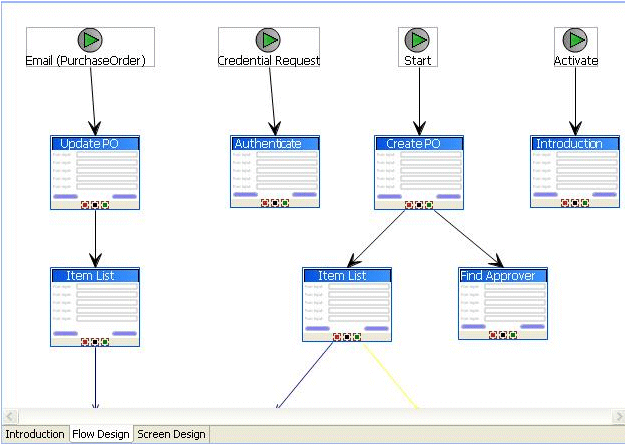
Screens and navigations
Navigations represent transitions from a starting point to a screen, or from one screen to another.
New screens are opened when the user clicks on a menu item or a row in a listview control. Screens can also be opened upon success or failure of an operation.
Series of screens are designed from a starting point. Screens appear one at a time on the device. Screens are opened on a stack, and closed in the reverse of the order in which they were added. Each screen contains one or more controls.
Controls and keys
There are seven types of controls—Checkbox, EditBox, Choice, Slider, Signature, HtmlView and Listview.
HtmlView and Listview controls, if present on a screen, must be the only control on that screen.
EditBox controls have a logical type—Text, Numeric, Date, DateTime or Time. Depending on which logical type is chosen, the control at runtime may behave differently, for example, for Date, a datepicker control is available to the user.
The contents of the controls are bound to keys. When the screen is opened, the value associated with that key determines what appears in that control. When the control’s contents are updated, the value associated with that key change accordingly.
For starting points initiated by the server, such as an e-mail subscription, you can specify where the value associated with a given key will come from, for example, as an MBO attribute.
When a menu item is bound to an MBO operation or object query, each parameter of the operation or object query is bound to a key. When the operation or object query is invoked, the value passed into each parameter is the value associated with the corresponding key.
Menu items
- Save – closes the current screen, validates the current input and, if validation succeeds, saves it.
- Cancel – discards any changes on the current screen and closes it. No validation occurs.
- Close – discards any changes on any open screens and closes all open screens. No validation occurs.
- Open – opens a different screen.
- Add – opens a different screen, where you can add a new row to a listview.
- Submit – validates the entered data on open screens and sends it to the server. There, the server invokes the specified MBO operation or object query. If the Submit is asynchronous, the client application closes once the request is sent. If the Submit is synchronous, the client application stays open.
- Add/Update/Delete Listview Row – specifies the MBO operation that is associated with the appropriate action on the listview. These operations will not be invoked immediately, but will instead be invoked when a Submit is made on the parent MBO to which this MBO is related. It can be added only to screens that are navigated to as the result of a Listview Details navigation, for example, by clicking on a row in a listview.