Testing the Device Application on the BlackBerry Simulator
Goal: Run and test the SUP101Sample application on the BlackBerry 8900 Simulator.
This tutorial shows the device application running on the BlackBerry 8900 Simulator.
In the Java perspective, right-click the SUP101Sample project and select Run As > BlackBerry Simulator
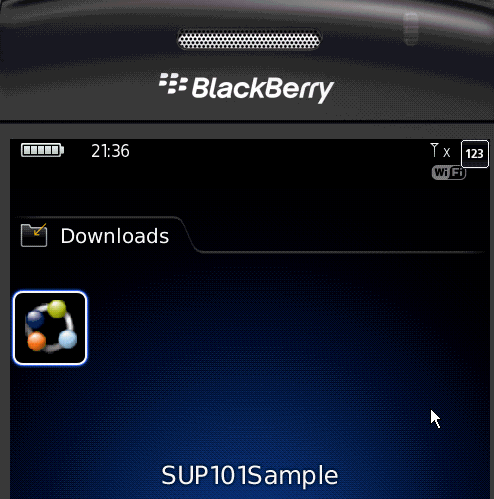
Click the menu key to access the applications screen, and navigate to the Downloads folder and open it.
Scroll to locate the SUP101Sample application, and click the trackball to open it.
Click the menu button and select Synchronize.
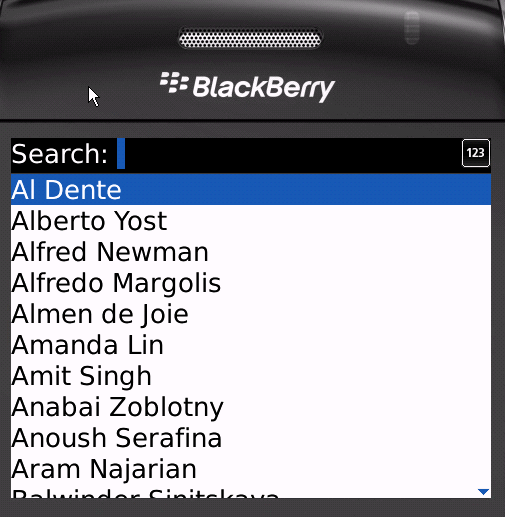
The customer list appears.
Focus on the customer list and enter dal in the Search bar.
The customer list is filtered and only customers with a first or last name beginning with 'dal' are shown, in this case, Daljit Sinnot.
Select the customer, Daljit Sinnot, and click the trackball.
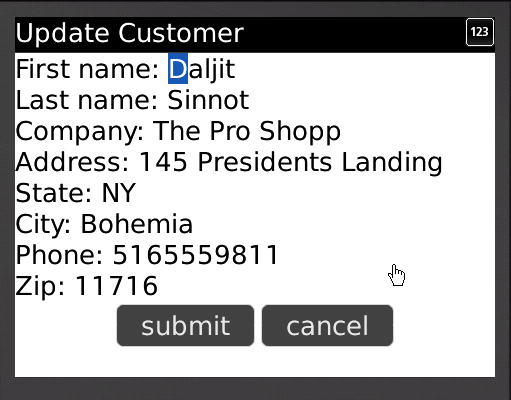
The detail screen for Daljit Sinnot appears.
In the customer detail screen, change the first name of the customer to abc and click Submit.
The Submit button on the Customer Detail screen is mapped to the update operation of the customer mobile business object. When the application is synchronized, any pending operations are uploaded to Unwired Server.
To upload the new record to the back-end database sampledb, click the Menu key, and select Synchronize from the menu.
Created February 9, 2011. Send feedback on this help topic to Sybase Technical Publications:
pubs@sybase.com