Submit a travel request when you want to get approval for business travel.
Prerequisites
- Your have activated the Time and Travel packages.
-
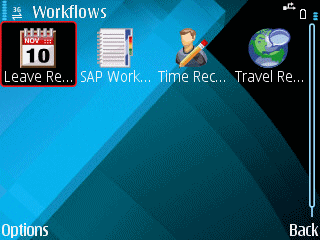
Open the Workflows screen.
Option Description From the Home page on phones like Nokia E71 From the Home page on phones like Nokia 5800 - Open the Travel Request package.
-
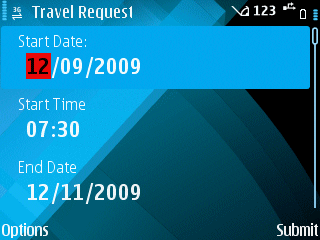
Enter Start Date and Start Time.
You can not yet enter the other information yet.
- Select Continue.
- If your SAP login has changed, enter your new SAP Username and Password in the Change Credentials screen that appears. Contact your SAP system administrator if you do not know your new Username or Password.
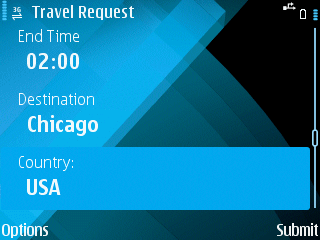
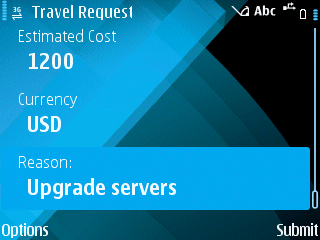
- Enter the rest of the detailed information for your travel.
-
(Optional) Change information you entered earlier.
-
Select Submit.
A message appears saying that the Travel Request was submitted. A message has been sent to the Approver. You may receive a confirmation message, containing the trip number, after the travel request is accepted by the SAP system. When the Approver approves or rejects the leave request, a text message may be automatically sent to notify you of the result.